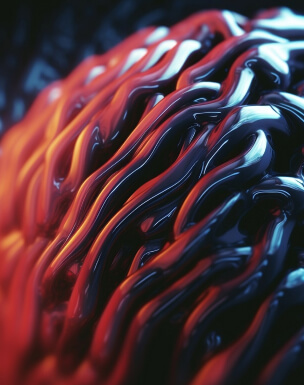


A wallpaper is a small design choice with a surprisingly large effect: it sets the tone every time you unlock a phone, open a laptop, or glance at a monitor. AI-generated wallpapers make that choice more flexible, turning a short prompt into artwork tailored to a screen, a mood, or a personal style.
Instead of browsing endlessly through generic image libraries, you can explore concepts shaped around your preferences. A useful starting point is https://aiwallpapers.app/, where the idea of AI wallpapers connects image discovery with a more personalized visual experience. The best results come from pairing clear creative direction with a few practical checks.
What Makes AI Wallpaper Different?
Traditional wallpaper collections offer finished images. AI wallpaper tools add another route: describe a scene, aesthetic, palette, or subject, then use generated imagery to find a result that feels more specific. A prompt might call for a quiet alpine lake in muted blue, a geometric pattern in warm neutrals, or a futuristic city illuminated by violet light.
This approach is valuable when common searches return the same familiar choices. It can also help users explore styles they have difficulty naming. Rather than searching only for “abstract wallpaper,” for example, someone can describe flowing ink, soft gradients, and a calm atmosphere. The wording becomes part of the creative process.
How to Choose a Wallpaper That Works on Your Screen
An appealing image still needs to function as a background. Icons, widgets, and notification labels can disappear against busy details, while an image with the wrong proportions may crop out its main subject. Consider the display before settling on a design.
- Match the aspect ratio: Select an image suited to your phone, tablet, desktop, or ultrawide monitor.
- Protect visual space: Keep intricate details away from areas occupied by app icons or desktop shortcuts.
- Check contrast: Light text is easier to read on darker backgrounds, while dark interface elements need a brighter field.
- Consider resolution: A sharp, sufficiently large image will look cleaner on high-density displays.
- Preview the crop: Lock screens and home screens may frame the same image differently.
For a phone lock screen, a centered subject can be obscured by the clock. Placing the focal point lower in the composition often leaves the upper area visually open. On a desktop, a restrained image with a quieter region on one side may keep folders readable without sacrificing character.
Prompting for More Intentional Results
Good prompts are specific, but not overloaded. Begin with the subject, then add a visual style, a palette, and a composition note. “A red fox” gives an image model broad freedom; “a red fox in a snowy pine forest, cinematic natural light, subdued greens, subject on the right, open space on the left” communicates a clearer goal.
Useful details include lighting, texture, camera perspective, season, and emotional tone. You can also name what to avoid, such as text, logos, crowded scenery, or harsh neon. If the first output misses the mark, change one element at a time. That makes it easier to see which instruction improves the composition.
Keep prompts aligned with the device’s use. A vivid fantasy landscape may suit a personal tablet, while a low-contrast abstract design may be more comfortable for a work monitor used throughout the day. The aim is not simply to generate something impressive; it is to create an image that remains practical after the novelty wears off.
Popular Styles and Their Best Uses
| Wallpaper style | Visual character | Often suits |
|---|---|---|
| Minimalist | Simple shapes, open space, limited colors | Busy home screens and focused workspaces |
| Nature-inspired | Landscapes, plants, skies, organic textures | Relaxed everyday viewing |
| Abstract | Patterns, gradients, expressive forms | Personalized setups without a literal subject |
| Sci-fi | Futuristic architecture, glowing details, dramatic scenes | Bold displays and themed devices |
| Illustrative | Hand-drawn, painterly, or stylized imagery | Distinctive, character-led customization |
Style is only one part of the decision. A detailed illustration may look excellent on a large monitor but feel cluttered behind phone icons. Conversely, a simple gradient can provide a polished appearance on nearly any screen, though it may feel less distinctive. Compare the image at its actual display size rather than judging it only as a full-screen preview.
Quality, Privacy, and Everyday Use
Before downloading or setting an image, review the platform’s available usage information and file options. Check whether the wallpaper can be saved at the resolution you need, and whether the service explains how prompts or uploaded images are handled. Avoid including personal information in prompts, especially if you are uncertain how a tool stores submitted content.
Generated images may occasionally contain visual glitches, uneven details, or unexpected objects. Zoom in before using a result, particularly around faces, hands, text-like marks, and repeating patterns. If an image includes lettering, inspect it carefully: generated text can appear convincing at a glance while remaining distorted on closer view.
AI wallpaper creation is most rewarding when treated as an iterative design process. Start with a clear idea, test a few variations, and judge each option on composition, readability, and screen fit. With those checks in place, a background can feel personal without becoming distracting—and a simple prompt can lead to a display that is both distinctive and comfortable to use.